
Team and account
Your team, the roles people can have, who sees which repository, and your own sign-in and profile.
Everything in Vroni belongs to a team, including repositories, tasks, credits, and the subscription. When you sign up, Vroni creates a team in your name and makes you its owner. If you work alone, you don’t need to change anything here.
This page covers inviting people, assigning roles, controlling repository access, and managing your team settings. It also covers your personal account: sign-in, profile, and two-factor authentication.
Invite people
You need the Team plan to invite others. The Free and Solo plans include one person, the owner.
- Open Settings and choose Team settings.
- Under Add team member, enter the person’s Email and choose a Role.
- Choose Add.
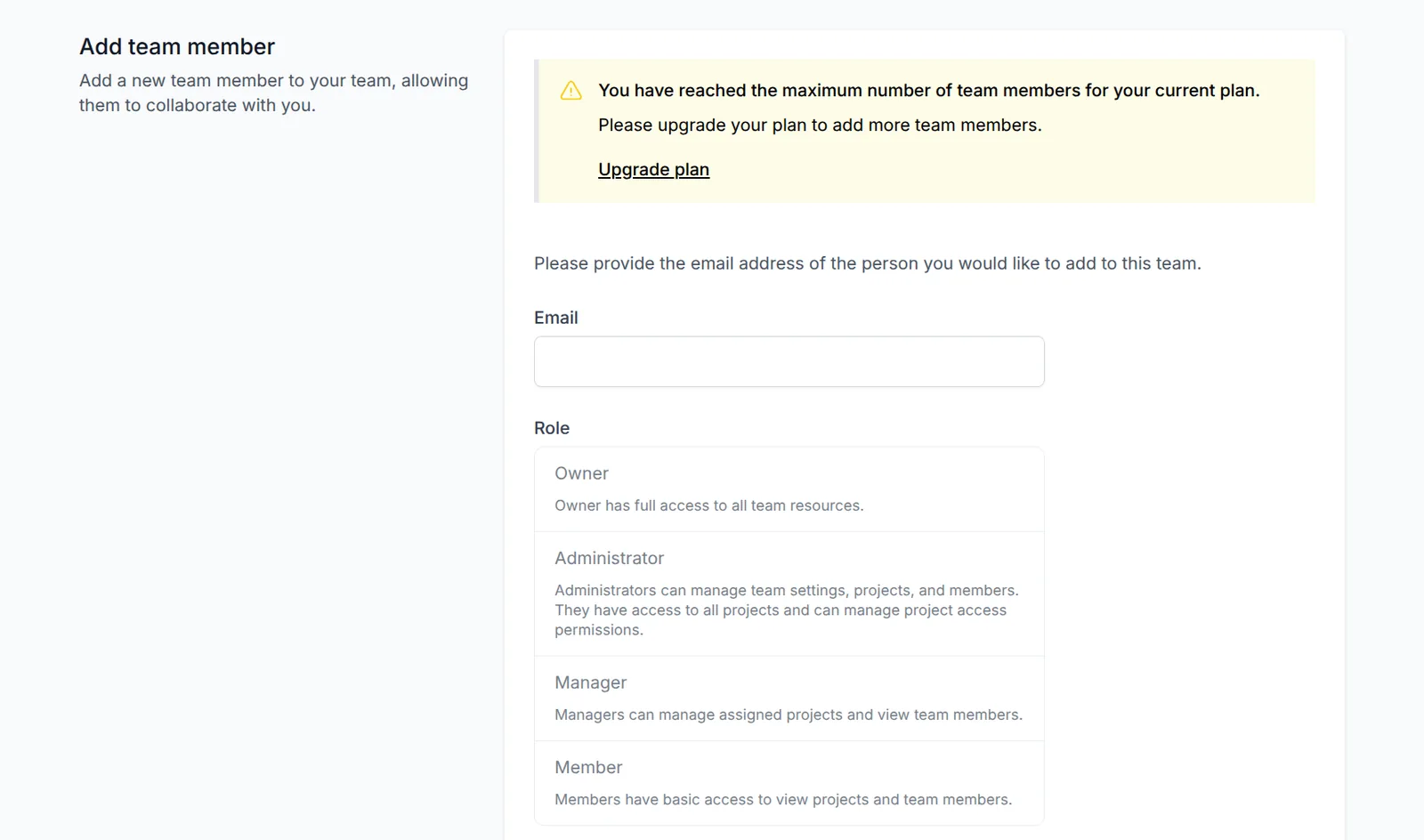
On the Free and Solo plans, the form tells you that you’ve reached the maximum number of team members for your plan.
The person you invited gets an email with a link and signs in with that address. If they already have a Vroni account under that email, they can also accept the invitation from the notice in the app.
Once they join, give them access to the repositories they need to work on, unless you made them an administrator.
If you belong to more than one team, such as your own and a client’s, use Switch Teams in the user menu to move between them. You can’t create additional teams yourself.
Roles
The team owner is the person who owns the team. Only the team owner can handle billing, buy credits, and invite or remove people. Everyone else gets one of four roles.
| Administrator | Owner (role) | Manager | Member | |
|---|---|---|---|---|
| Sees repositories | all | the ones given | the ones given | the ones given |
| Creates tasks | yes | yes | yes | yes |
| Cancels and retries runs, requests changes, merges | yes | yes | yes | no |
| Approves tasks and pull requests | yes | yes | yes | no |
| Gives others access to repositories | yes | no | no | no |
| Changes approval settings and notifications | yes | yes | no | no |
| Manages API tokens | yes | no | no | no |
| Sees analytics and the activity log | yes | yes | no | no |
The Owner role isn’t the same as being the team owner. A person with the Owner role can’t manage billing or people, and they only see the repositories they were given. If you want someone to manage almost everything alongside you, choose Administrator.
Give access to a repository
The team owner and administrators see every repository. Everyone else only sees the repositories they were given, along with the tasks and pull requests in them.
- Open the repository from Repositories.
- Choose Manage access.
- Grant or remove access for each person.
Vroni records these changes in the team’s activity log. See Analytics and activity log.
Team settings
In Team settings, you’ll find your team’s name and company details, the Delivery approvals switches, Manage API tokens, and the list of team members. See Approvals for details on the switches, and the API overview for tokens.
Sign in
You sign in with your email address and password at app.vroni.com/login. Vroni doesn’t offer sign-in with GitHub, Google, or single sign-on. When you connect the GitHub App, GitHub may ask you to confirm your GitHub account, but that doesn’t sign you in to Vroni.
If you forget your password, choose Forgot password? on the sign-in page. Vroni emails you a link to set a new one.
Your profile
Your personal settings are under Your profile in the user menu. There you can change your name, email address, and photo. If you change your email address, Vroni asks you to confirm the new one.
The app is available in English and German. Switch with the language selector at the top, and Vroni will remember your choice.
Turn on two-factor authentication
With two-factor authentication, signing in requires your password and a six-digit code from an authenticator app on your phone. Turn it on, since your Vroni account can start work in your repositories.
- Open Your profile and go to Two-factor authentication.
- Choose Enable. Vroni may ask for your password first.
- Scan the QR code with your authenticator app.
- Enter the code from the app to confirm.
- Keep the recovery codes somewhere safe. Each one works once if you lose your phone.
Your profile also lists the browsers where you’re signed in. If you lose a device, choose Log out other browser sessions.
Close your account
To close your account and have your data deleted, write to [email protected] from the address on your account. First, cancel your subscription under Billing and remove the Vroni GitHub App on GitHub so Vroni can’t reach your repositories anymore. Security and data explains what Vroni stores and for how long.
Last updated November 25, 2026. Something missing or unclear? Write to [email protected].